The crew's browser
A crewmate can have a browser of its own for its task. It opens websites and pages your project serves, reads them, clicks and types in them, and takes pictures of them for the task’s record. You can watch it work, take control when a page needs a person, and hand it back. A purchase, a booking or anything else that commits you is always yours to make.
A task’s own browser
Section titled “A task’s own browser”The browser runs on the computer where the task runs, and belongs to that one task. It starts empty and signed out of everything, kept apart from your own browser, so it never uses your own browser’s sign-ins, history or saved passwords. When Google Chrome or Microsoft Edge is installed on that computer, the task’s browser runs in it, kept apart the same way; otherwise it uses Infinitary’s own. Nothing a page asks for opens in your own browser or in another app.
A crewmate’s browser may open:
- public websites, over https;
- pages on the same computer, such as a project the crewmate runs there;
- a site on your office, home or VPN network, once you list it under Private sites.
While the crewmate drives, the browser says no to a page that asks for your camera, microphone, clipboard or notifications. A site that asks for a passkey is told there is none, so it offers another way, such as a password or a code. When a page needs a sign-in, a code or a payment, the crewmate asks you (below).
The browser stops when the crewmate closes it, when you press Stop browser, when its task closes, after 30 minutes unused while nobody watches, or when Infinitary quits. A computer runs at most four task browsers at once.
Watch it work
Section titled “Watch it work”Open the task’s card and choose its Browser tab, which reads Browser and the page’s title. From a card about the task, Show Browser in command search opens it too. A crewmate’s card can also carry a button, such as “Try it” or “View booking”, that opens the browser beside that card.
The row above the page has Back, Forward and Reload, who is driving, Point at, Take control and More. While you watch, the page is a picture of what the crewmate sees, and your clicks do not reach it. More holds Fit or Actual size, Stop browser, Copy page address and Report a problem, which starts a message to your first mate for you to finish.
Under the page, a folded Crewmate line shows the crewmate’s latest words. Open it to read the crewmate’s session beside the page and write to it. Hide or Escape puts the view away, and the browser keeps running.
A stopped browser says why it stopped. Open again starts a fresh browser at the page it was on, signed in only to the sites this task may still use; it is not offered once the task has closed.
Take control
Section titled “Take control”- Press Take control in the row above the page. The crewmate finishes its current action first, and the row reads “finishing the crewmate’s current action…”.
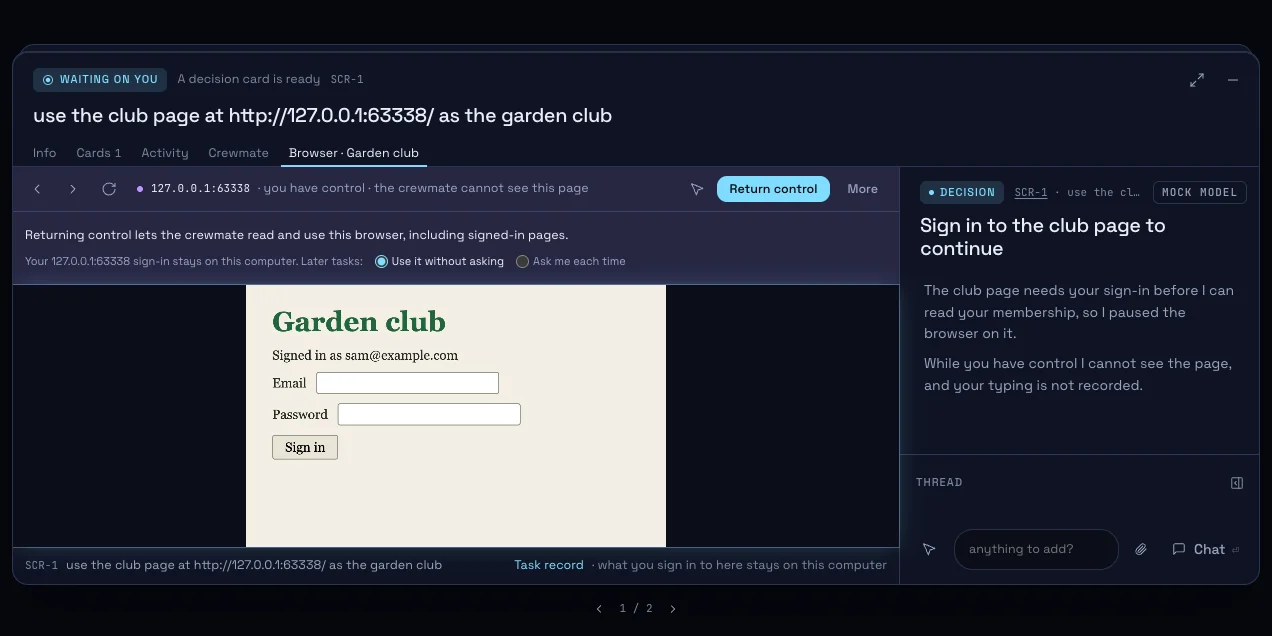
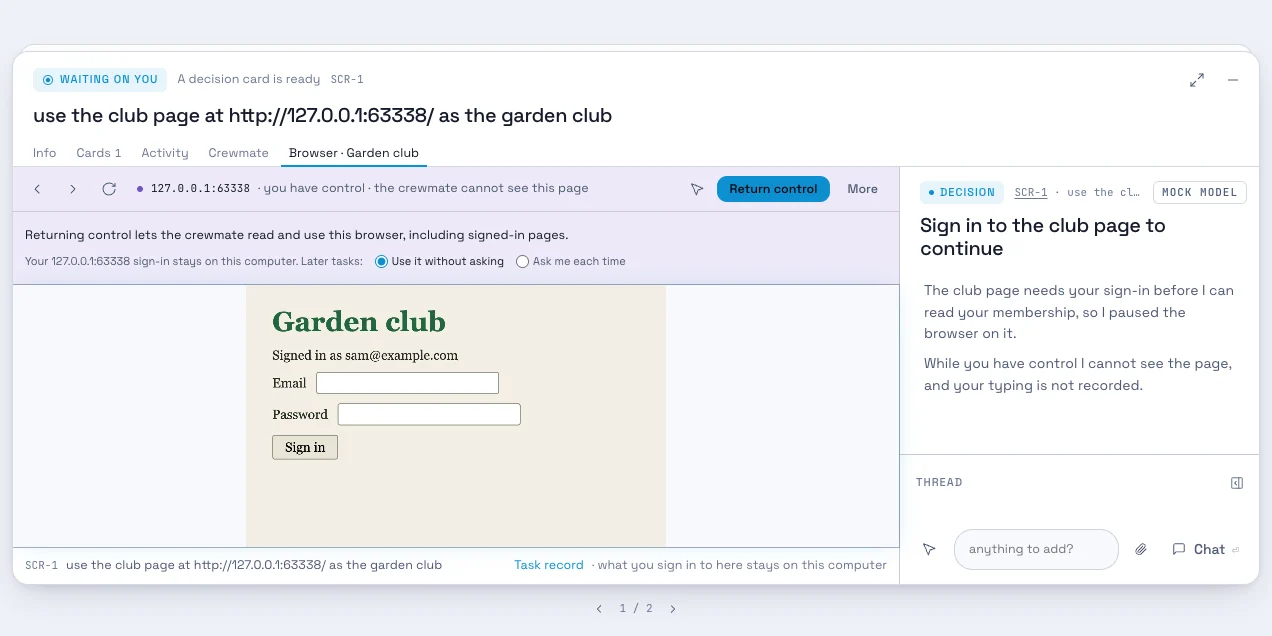
- The row reads “you have control · the crewmate cannot see this page”. Your clicks, scrolling, typing and paste now reach the page.
- Press Return control to hand it back. Before you press it, the view reminds you: “Returning control lets the crewmate read and use this browser, including signed-in pages.”
Nothing else moves control: not a click on the page, a sign-in, a redirect, Hide, a card closing or a timer. Take or return browser control in command search does the same for the browser on screen.
While you have control:
- nothing you do on the page is recorded, and the crewmate never hears what the page said in your time;
- a page that asks for your camera, microphone, clipboard or notifications asks you in a line above the page, with Allow once and Not now, and Return control takes back what you allowed;
- a page that asks for a file opens Infinitary’s own file picker for you.
After you hand it back, the crewmate takes a fresh look at the page. It does not read what you typed into the page’s fields: they show as filled, with their words hidden. It takes a picture of the page only with a reason it gives, which goes in the task’s Activity, and never of a page that holds what you typed.
Point at a place on the page
Section titled “Point at a place on the page”To tell the crewmate about one place on the page, point at it.
- Press Point at in the row above the page, or ⇧⌘A (Ctrl+Shift+A on Linux and Windows). The page is held still, and nothing you do reaches it.
- Press a spot, drag a box, or choose Freehand line and draw one line. From the keyboard, step through the things on the page with the arrow keys, and press Enter.
- Type a comment, or leave it empty, and press Queue. The note shows the exact picture that will be sent.
Escape leaves Point at without a note.
With a card beside the page, the note waits with that card’s notes and goes with your reply. With no card there, it waits above the Crewmate message box beside the page, and goes with your next message to the crewmate. Nothing reaches the crewmate before you send. The crewmate then gets the picture with your marks, the page’s address and title, and the name of what you marked.
Point at works while you watch and while you have control. While you have control, the note says “Sending shows this picture of the page to the crewmate.”
When a page needs you
Section titled “When a page needs you”A crewmate that needs a person on the page, for a sign-in, a code or a payment, asks you on a decision card. The card names the site and why, with a button for your part, such as “Open browser and sign in”, beside one such as “Leave waiting”. Meanwhile the browser waits for you, and the task’s Browser line reads “paused for your help”.
Press the card’s button, and the page opens under your control with the card beside it. The card keeps its instructions and any values to copy in view, and its field lets you write to the crewmate while you work. When you are done, press Return control. The card goes away, the crewmate carries on, and any words left in the card’s field go with your return.
Signed-in sites
Section titled “Signed-in sites”When a crewmate asks you to sign in, or to create an account, what you sign in to stays in that computer’s own browser profile. It covers the whole site, so a sign-in made on example.com’s separate sign-in page also serves its other pages, such as developer.example.com. When you press Return control, a question above the page asks what later tasks may do, such as “Your example.com sign-in stays on this computer. Later tasks:”:
- Use it without asking leads and is picked for a new site. A later task opens the site signed in, with no card, and its Activity says so each time. It never covers a payment or a final submission.
- Ask me each time has a later task that needs the site ask on its card, which adds Use my example.com sign-in beside Sign in myself. One click lets that task’s browser use the site, signed in, and you type nothing.
A rule applies to tasks across all projects on that computer. A browser using a signed-in site opens only that site and the sign-in pages it passed through; any other site opens signed out. A task keeps the signed-in sites it may use when its browser stops on its own or the app restarts, until you press Stop browser or the task closes. When you sign in for any other reason, such as after pressing Take control yourself, the sign-in usually lasts only until that browser stops. The line under the page says which, such as “temporary · keeps what you signed in to until it stops”.
Each computer keeps its own sign-ins, and none is copied to another computer or to a file. They stay in that computer’s browser profile, not in protected storage, so they are as safe as that computer’s own login and disk.
On the computer where your first mate lives, the list is in Settings → Secrets, under Signed-in sites, with each computer’s sites under its name. On a computer that controls your first mate from elsewhere, it is in Settings → General, under Website sign-ins. Each site shows when you signed in, its Later tasks rule and Remove, which signs it out on that computer at once. Remove all signs that computer out of every site, including sign-ins never added to the list.
Sites end their own sign-ins from time to time, and the crewmate then asks you again. If a kept sign-in did not sign the page in, the next card leads with Sign in myself and keeps Use my sign-in (did not work last time) as a second choice.
Private sites
Section titled “Private sites”A site on your office, home or VPN network is reached only once you list it. When a crewmate needs one, your first mate asks you on a card, such as “Let task browsers reach wiki.corp.example?”. Press Allow to add it, or Not now; your first mate never adds one itself.
The list is under Private sites in Settings → Integrations, and applies on all your computers.
- Press Site, type a name such as
wiki.corp.example, and press Add. - A suffix such as
.corp.example.comcovers every name under it. - An entry is a name, never a numeric address.
- Remove takes a site off the list, and task browsers stop reaching it at once.
A listed site opens over https or http, from any page, as in an ordinary browser. It never reaches a program that listens only inside the computer itself.
Purchases and bookings are yours
Section titled “Purchases and bookings are yours”A purchase, a booking or any other submission that commits you is yours to make, on the site’s own page, under your control. The crewmate fills it in up to the last button and stops there.
It then asks on a review card that names what you commit to, read from the page as it is now. For a trip that is the route, dates and times, passengers, seller, total and currency, and the baggage and fare rules. The card also names anything still uncertain, and what changed since you last chose. Its button names your part, such as “Open browser and pay”, beside one such as “Stop here”.
- If the price or the terms change after the review, the crewmate stops and asks again.
- After you pay and return control, the crewmate reads what the page says happened and keeps only the result, such as a booking reference. The card details you typed stay hidden from it.
- If the page does not confirm it, the crewmate says plainly that it does not know whether it went through. It never sends it again, and checks where the site lists it, such as your bookings, before asking you.
- The browser never sends a form twice: reloading a page that answered a form does not send it again.
Files and downloads
Section titled “Files and downloads”A file a page downloads, including one you download while you have control, is saved with the task’s evidence, and the task’s Activity notes each one. When a page asks for a file, the crewmate can give it only a file from the task’s working copy. A file it does not have is yours to give: it asks you on a card that hands you the browser.
On your other computers
Section titled “On your other computers”A task that runs on another of your computers has its browser there. You watch it and take control from any window, as you would a browser on this computer. That computer keeps its own signed-in sites, and the private sites list applies there too. A page there that asks for a file while you have control waits for the crewmate, since Infinitary’s file picker cannot reach that computer. See Your other computers.