Cards and decisions
A card is how your first mate or a crewmate brings you something. It carries one answer, one finding or one decision, with the evidence behind it. Cards come up in the middle of the window, over your first mate.
The stack
Section titled “The stack”When more than one card is waiting, they form a stack, and you see one at a time. A new card arrives without pushing aside the one you are reading.
- Show the next card: ⇧⌘] (Ctrl+Shift+] on Linux and Windows).
- Show the previous card: ⇧⌘[ (Ctrl+Shift+[ on Linux and Windows).
A task with a card waiting for you is listed under Waiting on you in Tasks. The keys on this page are the standard ones; Keyboard lists every key, for each set of keys you can choose.
Notes and decisions
Section titled “Notes and decisions”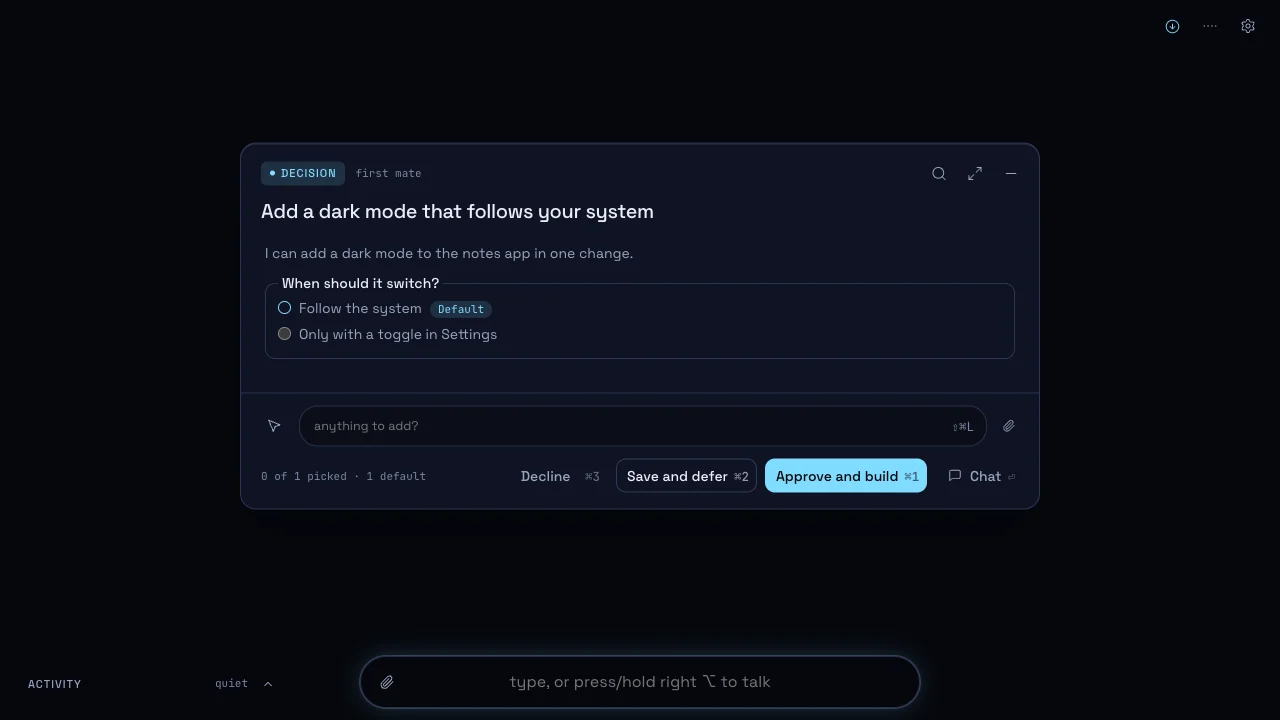
A card is one of two kinds, marked at its top:
- A Note tells you something and asks nothing. Its one button is Got it, or Done when reading it closes the task it answers.
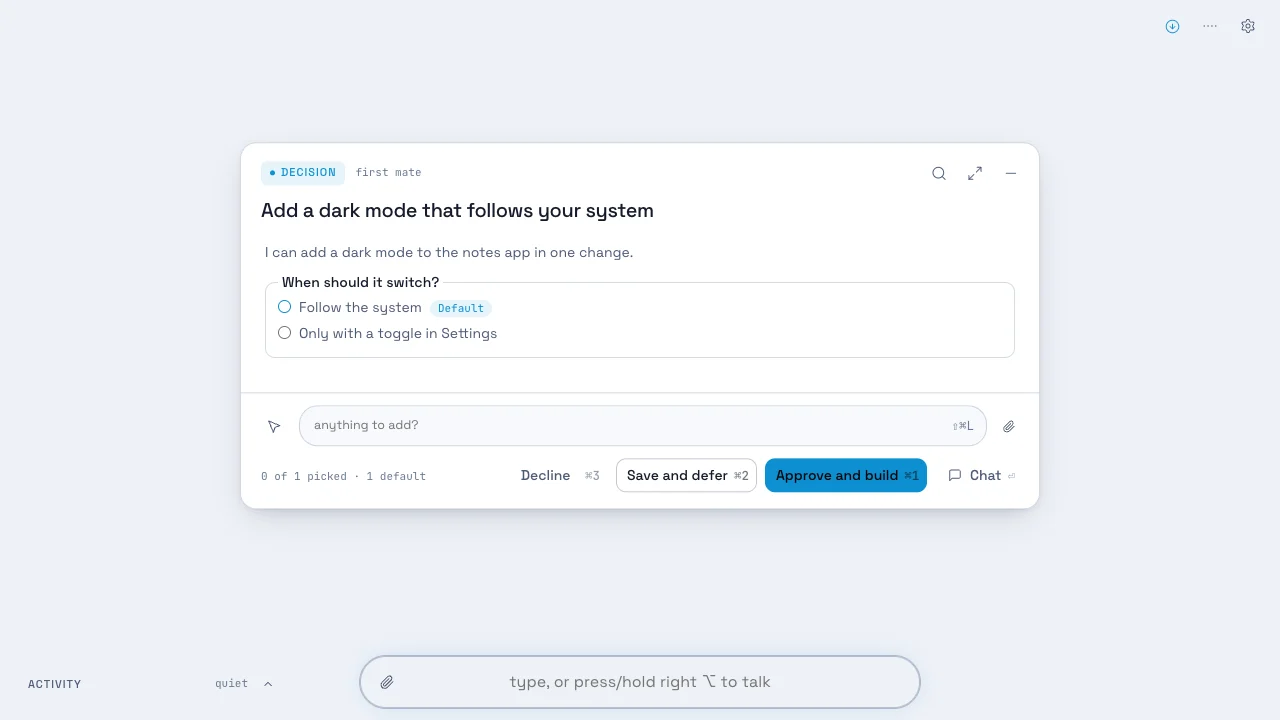
- A Decision asks you to choose. It offers two or three choices, and the one its author recommends is the main button.
Most decisions also have a quiet Decline button, to say no to every choice.
Answering a decision
Section titled “Answering a decision”Press a button to choose. ⌘1 (Ctrl+1 on Linux and Windows) presses the main button, and ⌘2 to ⌘4 the others.
Some cards ask more than one question in their body, beside the part each question is about. Pick an answer for each, then press a button to send them all together. Clicking inside the card never sends anything on its own.
- Nothing is picked for you. The option its author recommends carries a Recommended tag.
- A question you may skip tags that option Default instead. If you leave the question untouched, your answer is the default.
- A count by the buttons says how many questions still need an answer.
- Each question with options ends with Something else. Pick it and write your own answer in the field that opens.
The reply field and the thread
Section titled “The reply field and the thread”Every card has a field under its body that reads “anything to add?”, except the welcome. A reply under a card shown while your first mate is down waits until it is back, and the card stays up until your first mate answers there.
- Type in it and press Chat to send a reply without choosing.
- Type in it and press a choice to send your words with that choice.
A reply goes to whoever wrote the card. On a card Infinitary puts up itself, a reply goes to the crewmate that asked for it, or otherwise to your first mate. The first reply opens a thread beside the card, and the author answers there. When the author changes the card in answer, the card is revised in place, and the thread says so. To fold the thread back into the card, press ⌘\ (Ctrl+\ on Linux and Windows).
The card stays in its place while its author works on your reply. A crewmate redraws its card once, when it has finished.
Pointing at part of a card
Section titled “Pointing at part of a card”To say which part of a card your words are about, point at it.
- Press Point at, the pointer beside the reply field, or ⇧⌘A (Ctrl+Shift+A on Linux and Windows).
- Click a part of the card, or move to it with the arrow keys and press Enter.
- Type a comment, or leave it empty, and press Queue.
You can also select words in the card and press Annotate under them.
Each note waits in the thread, marked Not sent, with Edit and Remove. Point at turns off after each note, so press it again for the next part. With two notes waiting, Chat reads Send 2 notes, and sends them together as one reply. The card’s author reads each note with the part it points at.
Pointing at a picture
Section titled “Pointing at a picture”Click a picture on a card to see it larger. There, press Point at to mark a place on it.
- With Box or spot, drag a box or press a spot.
- With Freehand line, draw one line.
- From the keyboard, the arrow keys move a box, Shift with an arrow sizes it, and Enter writes the note.
Each mark gets a number, and its note waits in the thread with a small copy of the picture. When you send, the author gets the picture with every mark drawn on it. A reply carries up to four pictures.
Putting a card aside
Section titled “Putting a card aside”Each card has a minus in its corner, Put aside. It hides the card without answering it. Your picks and anything you typed stay with it. The card waits under Waiting on you in Tasks, and comes back when its author changes it.
- Put card aside: ⇧⌘M (Ctrl+Shift+M on Linux and Windows).
- Put every card aside or bring them back: ⌥⇧⌘M (Ctrl+Alt+Shift+M on Linux and Windows).
To bring a card back, click its task in Tasks.
Finding words in a card
Section titled “Finding words in a card”Press ⌘F (Ctrl+F on Linux and Windows), or the magnifying glass at the card’s top, to find words in the card on screen. Type in the field that opens, and the matches light up as you type. Capital letters and accents make no difference. A count such as “2 of 7” says which match you are on.
- Next match: Enter or ⌘G (Ctrl+G on Linux and Windows).
- Previous match: Shift+Enter or ⇧⌘G (Ctrl+Shift+G on Linux and Windows).
- Close find: Escape.
It looks through the whole card: its title, its body, its folded sections and its thread. A folded section opens when the match is inside it. It works the same in a past card, in the whole conversation and on a task’s card, except on its Browser tab.
Links in a card
Section titled “Links in a card”A web address in a card opens in your default browser when you click it, tap it or press Enter on it. That includes an address a crewmate wrote as plain words, such as a step that says to open a sign-in page, on your computer and on your iPhone or iPad. It takes addresses that start with https://, and http:// addresses on your own computer. A long address wraps inside the card. An address in a card’s thread, in your replies and in the crew’s, opens the same way.
Merge cards
Section titled “Merge cards”When a change is ready, its crewmate brings a merge card. It tells the change’s story: why, what changed, and what was checked.
Before and After pictures. Each screen the change touches shows how it looked before and how it looks after, side by side. A new screen shows only After. Click a picture to see it larger, and to point at a place on it. In the larger view, the arrow keys or the arrows at its sides go through every picture on the card, so a screen’s Before and After are one key apart. A demo recording has a play button.
The risk drawing. At the card’s top right, a small drawing rates the change on seven things: Blast radius, Behavior, Undo, Evidence, Sensitivity, Novelty and Dependencies. Each is low, medium or high, and the shape grows toward the higher ones. Rest on a dot to read the crewmate’s reason. There is no overall score.
The buttons. Merge the pull request merges it, Review carefully asks for an independent review first, and Discard drops the work. See Your first task for what each button does while the checks run or after they fail.
Things only you can do
Section titled “Things only you can do”Sometimes a change needs something after it merges that only you can do, such as updating an app on another computer. The merge card then lists it at the top, under “After merging, you need to…”, with what happens if you wait.
After you merge, each of these comes back as a card of its own. Do what it says, then press its button to confirm. If it did not work, paste what you saw into its field and choose It failed, and your first mate arranges a fix. Not now leaves it under Waiting on you in Tasks. Decline says you will not do it: the card closes, the step is dropped, and your first mate hears your no with anything you typed.
Past cards
Section titled “Past cards”A card you answered is kept. Open its task and choose the Cards tab to read it again, with what you chose. The whole conversation lists the cards you answered too, in its Cards view.