Subscriptions and allowance
Your first mate and your crew work through the AI subscriptions you already have. You manage them in Settings, under Intelligence, in the AI subscriptions list.
Add a subscription
Section titled “Add a subscription”- Open Settings and choose Intelligence.
- At the foot of AI subscriptions, under Add account, choose your provider: Codex, Grok, Claude, Kimi Code, Copilot, OpenCode Go, OpenRouter or Amazon Bedrock.
- Sign in the way the provider asks. Some open your browser, some show a code to enter on their site, and some take a key you paste.
- When the sign-in finishes, the new account appears in the list.
You can add more than one account of the same provider. Its button then reads Add another Codex account, for example.
Name your accounts
Section titled “Name your accounts”Each account has a label, so you can tell a personal account from a work one. When the sign-in does not name the account, a name box opens so you can type one. To change it later, open the account’s menu and choose Rename.
A Claude account is different. It follows the Claude Code sign-in on your computer, so its row shows whoever is signed in there now. It has no Rename, and if you switch the Claude Code sign-in, the row follows.
Read your plan’s allowance
Section titled “Read your plan’s allowance”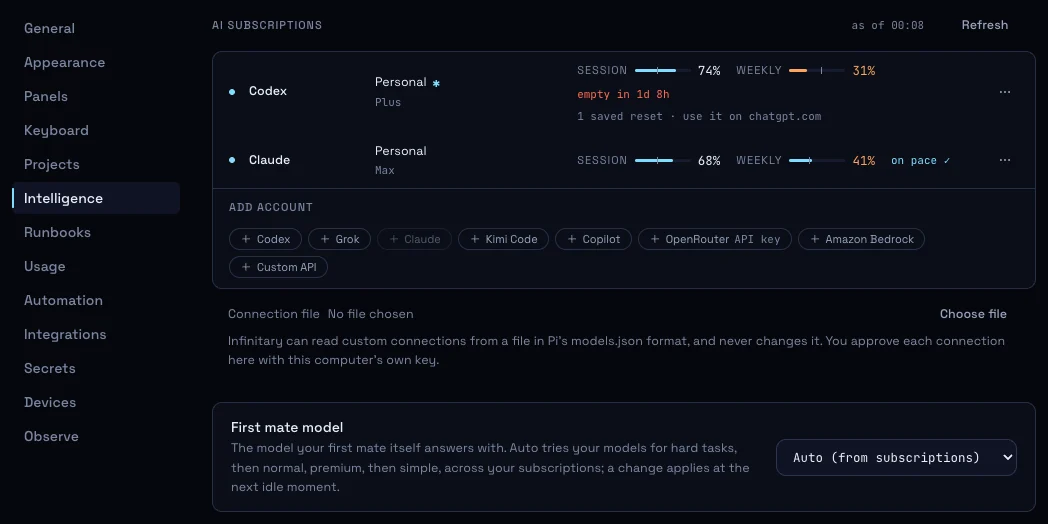
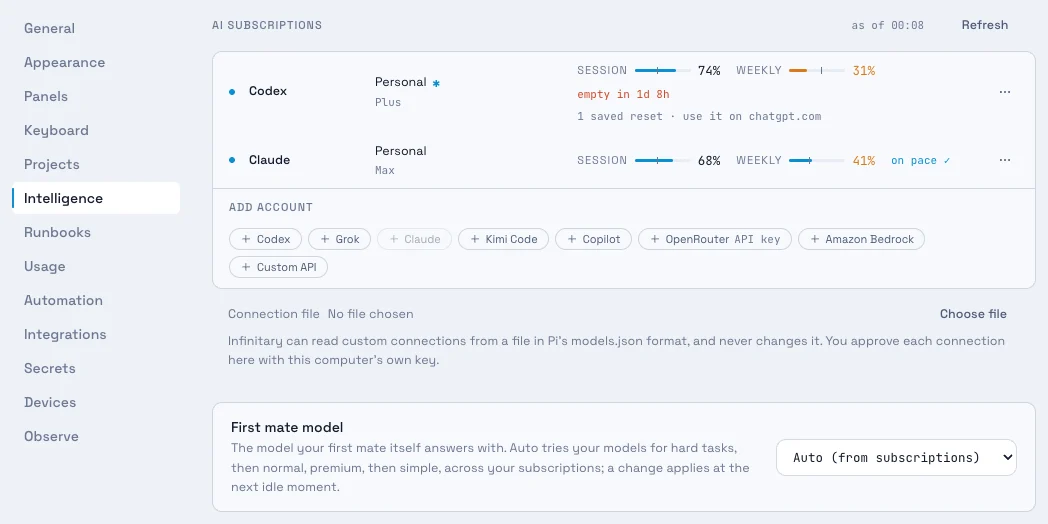
Each account shows a small meter for every allowance its provider has, such as a session and a week. The number is how much is left. Rest the pointer on a meter to see when it resets.
- The bar turns amber when you are ahead of the clock: spending faster than an even pace would last until the reset.
- The number turns amber below half, and red below a fifth.
- Beside the meters, one word sums up the account: on pace, empty in a time, or empty now.
- as of 3h ago means the last reading is old, so its numbers are dimmed.
- A dash means that allowance was not read.
- A Codex account that holds saved resets says how many under its meters.
Refresh, at the top of the list, reads every allowance again. Infinitary does not read an allowance for OpenRouter or a custom API, and the row says so. Amazon Bedrock is billed by use on your AWS account; its row shows this month’s estimate from work Infinitary recorded.
Amazon Bedrock through your organization
Section titled “Amazon Bedrock through your organization”When you add Amazon Bedrock, Infinitary asks where its requests should go: Straight to AWS or My organization’s address. Type your organization’s address, and Infinitary shows its host and the network it is on: this computer, your organization’s network or the public internet. Press Send requests there to approve it. Requests then go only to that address, only while its name still points to that network, and only when its certificate is one your computer trusts. Amazon Bedrock requests, those sent straight to AWS included, no longer go through a proxy set in your computer’s environment. If your organization’s address signs requests itself, choose No key: my organization’s address signs requests instead of a profile or key. When Claude Code on your computer already uses Amazon Bedrock, the sign-in starts with its address, region and profile filled in, and says where they came from. The account’s row then says which address its requests are sent through.
Choose which account does what
Section titled “Choose which account does what”Open an account’s menu, the three dots on its row, for these choices. Its settings come first, each with a switch that shows whether it is on; picking one turns it on or off and leaves the menu open.
- Prefer for crew work makes your crew use this account first. A ✱ marks it.
- Paused stops all work on this account while its switch is on.
- Disconnect removes the account from Infinitary.
When you have two or more accounts of the provider your first mate uses, Settings lets you pick which one your first mate answers on. A firstmate tag marks that account.
When an allowance runs out
Section titled “When an allowance runs out”Your crew moves on by itself. New work goes to a model with allowance left. If none is left at that level, crew work drops to a weaker model or waits until the allowance resets.
When your first mate’s own account runs out, it first moves to another account of the same provider that still has some. If there is none, a card says Your first mate has used up its allowance. Your words wait, and nothing is lost. On the card you can choose Recheck allowance, move your first mate to another provider, or Open settings. If a recheck finds nothing changed, the card also offers to try your provider again, such as Try Claude again, for when your first mate reaches it on another sign-in; if the allowance is still used up, it pauses again.
Some providers can keep answering on credits you set up with them. For a Claude or Codex account, the menu holds Keep going on credits. Your crew then spends credits only after every included allowance. Infinitary never buys credits or sets their limit; the provider’s own site does.
Saved Codex resets
Section titled “Saved Codex resets”ChatGPT can give a Codex account saved resets. Each one refills an allowance before it resets by itself. The account’s row says how many it holds and where to use one, such as “1 saved reset · use it on chatgpt.com”.
While one can be used now, the account’s menu holds Use a saved reset. The card that says an allowance is used up says so too, with the same button and a link to the usage page on chatgpt.com. Infinitary then has Codex on your computer use the reset that expires first. This needs Codex 0.143 or later, and the first time Codex asks you to sign in to that ChatGPT account. A used reset cannot be given back. Activity says what happened, and how many are left.
Infinitary can also use them without a click. Turn on Use saved resets on their own in the account’s menu, or on that card; it is off until you do. Infinitary then uses one only when work waits and no account has room, and only when waiting for the allowance to refill would take long. Accounts with allowance left always come first. Activity says each time it uses one.
Sign in again
Section titled “Sign in again”A sign-in can lapse. When it does, the account’s row says sign in again and shows a Sign in button. Choose it and sign in the way you did the first time. This renews the same account, with its label and choices kept.
Custom API
Section titled “Custom API”If your organization runs its own AI server, choose Custom API under Add account. Give it a name, the server’s address, a key if it needs one, and the models to use. Save checks each model before your crew can use it. You then choose on the Models board whether your crew uses these models.
Connections from a file
Section titled “Connections from a file”If you already keep your connections in a file in Pi’s models.json format, Infinitary can read them from it.
On the Connection file row under AI subscriptions, press Choose file and pick the file.
Infinitary only reads the file: it never changes it, and it never uses a key written in it.
Each connection the file defines appears marked From your file and Not approved yet. Press Approve, type this computer’s own key and any model size the file leaves out, then Save, which checks each model.
Infinitary follows the file after that. A new name or price applies at once, and a changed limit checks that model again. A changed address, protocol or header pauses the connection until you press Approve again. A connection that leaves the file is paused, never deleted. Stop reading stops following the file, and the connections you approved stay.
On your other computers
Section titled “On your other computers”When another computer runs work for you, a custom connection’s row offers Use, naming that computer. You type that computer’s own key, and it checks each model and keeps the key itself; this computer keeps no copy. Later changes to the connection follow it there. See Your other computers.
Settings → Usage shows how much your first mate and your crew have used, across every project. It opens in Estimated $; under Show usage as you can switch to Tokens. Choose a Period and the kind of Work to count. Estimated dollars are a guide to value, not a bill.
Cost per task charts what a finished task costs, its reviews included. Each point is the median of the tasks that finished in the seven days before it, and the band holds the middle half of them. A line that climbs means tasks are taking more work than before. Projects and Kinds narrow it to the work you want to compare.
Recent tasks lists what each task used.
Under Intelligence, Ask before a task spends more than sets an amount. A task that passes it stops at a safe point and asks you on a card before it spends more.
Long conversations
Section titled “Long conversations”When a conversation grows long, your first mate and crew summarize it and carry on from the summary, so each message costs less and still fits the model. Under Intelligence, Summarize long conversations at sets where that happens.
- Automatic summarizes at 300,000 tokens, or sooner where a model charges more past a lower point.
- 150,000 tokens, 200,000 tokens, 300,000 tokens or 500,000 tokens summarizes at that number, or at a model’s own limit when it is smaller.
- Each model’s limit summarizes only near each model’s own limit, which can be a million tokens.
A lower number costs less; a higher one keeps more of the conversation in full. When the number you pick lets a model run past a point where its requests cost more, the row names that model and the point. A conversation already open follows a change at its next message, on your other computers too; a conversation with Claude follows it when it next starts.