Secrets
Secrets keeps the passwords and keys your crew needs for its work, such as the key that publishes your website. A crewmate uses a secret by its name, and only once you allow that use. Each value goes straight into Secrets on your computer: neither the first mate nor the crew gets it, and it stays hidden unless you copy it yourself.
Where your secrets live
Section titled “Where your secrets live”Open Settings, then Secrets, or search for Open Secrets in command search.
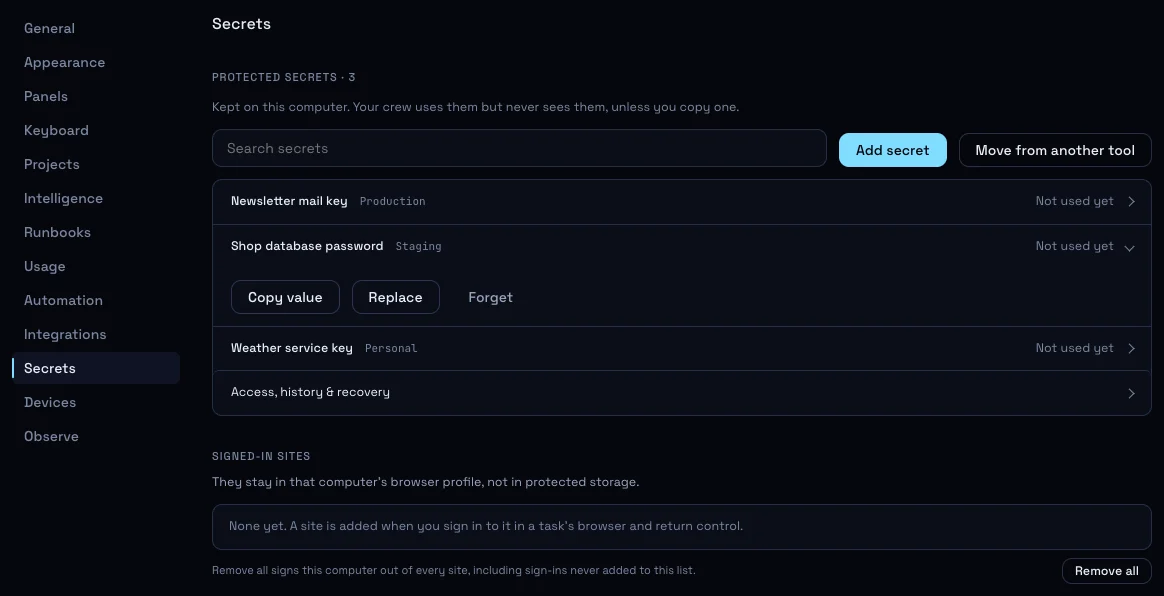
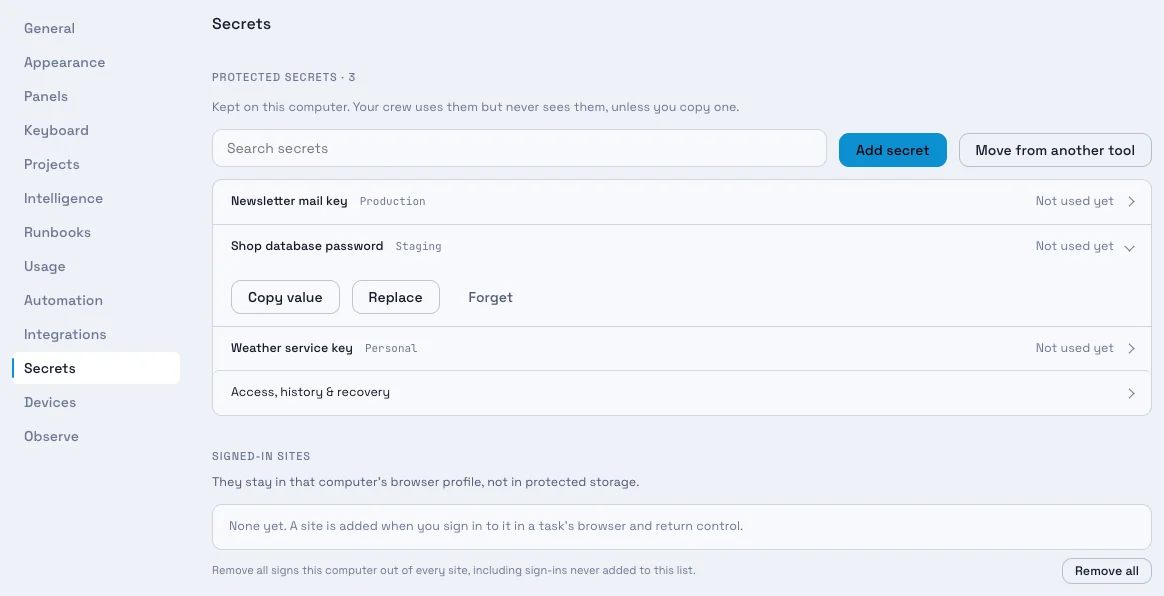
Protected secrets lists each secret by its name and place, and says which task last used it, and when. Search secrets finds one by its name, its place or the task that last used it.
On a Mac, the line under the list reads “Kept on this computer. Your crew uses them but never sees them, unless you copy one.” On Linux and Windows, it says your crew uses them only with your approval, but any program you run can reach them while your system’s secret store is unlocked.
Secrets stay on the computer where your first mate lives. A computer that controls your first mate from elsewhere has no Secrets section of its own.
Keep a secret
Section titled “Keep a secret”- Choose Add secret.
- Give it a Name, such as “Website deployment”.
- Paste the value into Secret value.
- If you keep two secrets with the same name, tell them apart with Place (optional), such as staging or production.
- Choose Save secret.
The value stays hidden after saving. Only a use you allow receives it, unless you copy it yourself. Open a secret’s row to copy its value, Replace it or Forget it. Forget removes it from this computer, but it does not turn the key off where it was made.
When a crewmate needs one you have not kept
Section titled “When a crewmate needs one you have not kept”A crewmate that needs a secret you have not kept asks for it by name, never for its value. Infinitary then puts up its own card, such as “Add Website deployment secret to Secrets?”, with the crewmate’s reason in its own words. When you have to make or find the secret yourself, the card also shows How to get it: the steps, names or places the crewmate laid out for this case, and a line saying who wrote them. Check each address it shows before you sign in there.
Type or paste each value into the hidden field Infinitary draws on the card, then choose Save secret. Don’t save saves nothing. The crewmate gets the secret’s name, never its value, and each use still asks you.
Type a secret only into a field Infinitary draws, never into a card’s reply field or your message box.
Copy a value
Section titled “Copy a value”When you need a value yourself, such as to paste a key into a website, open the secret’s row and choose Copy value. Each time, your computer asks you to confirm it is you: on a Mac with Touch ID or your password, on Linux with your password, and on Windows with Windows Hello or your Windows password.
The value goes onto this computer’s clipboard, and no other. On a Mac and on Windows, it does not travel to your other devices. On Linux, a clipboard history tool may still keep it, and the row says so.
The row then says “Copied. It leaves the clipboard at” a time, 90 seconds after the copy. Infinitary clears it then, or when you choose Clear now, or when you quit Infinitary. If you have copied something else since, it leaves your clipboard alone.
The secret’s row then says Copied by you and when, and Use history lists the copy the same way. Where your computer cannot confirm it is you, the button is off and the row says why.
Your first mate never copies a value. Ask it for one, and it brings you a card, such as “Open Website deployment in Secrets”, whose Open Secrets button opens that secret’s row for you.
Allow a use
Section titled “Allow a use”When a crewmate wants to use a secret, Infinitary puts up a card, such as “Give the Website deployment secret to “Publish the site”?”. The card says exactly what would receive it:
- Secret: each secret, and the name the program gets it under.
- Runs: the exact command.
- In folder: where it runs.
- Its reason: the crewmate’s reason, in its own words.
Everything that was checked lists what Infinitary checked about the program, and what it could not check. Then choose:
- Allow once gives the secret to this run only.
- Always allow this gives it to this run and saves this exact run: the same program, files, arguments and folder. Anything different asks again.
- Don’t allow refuses, and the next run asks again.
Each allow asks you to confirm first: on a Mac with Touch ID or your password, on Linux with your password, and on Windows with Windows Hello or your Windows password. What receives a secret can keep it. Allowing never approves a separate action, such as deploying or sending something. The crewmate hears when its program starts, so it carries on, and whether the run finished, never what it printed. If Infinitary closes while a request waits or its program runs, the crewmate hears how it ended when Infinitary opens again.
While a request waits, Settings → Secrets shows it at the top, with Review request to open its card.
Saved decisions
Section titled “Saved decisions”Open Access, history & recovery under the list of secrets, then Saved decisions. Each decision you saved with Always allow this is listed as one sentence.
You save a decision only on a request’s card. Here you can Remove one: your computer asks you to confirm, and the crew asks you again before its next use.
Approve from your phone
Section titled “Approve from your phone”You can allow a use from your iPhone or iPad while you are away from your computer.
- In Settings → Devices, turn on Approves secret uses on your phone’s row.
- Open Infinitary on the phone, which then shows its code.
- Choose Compare codes, and check that the code on your computer’s card matches the one in the phone’s Settings.
- Choose Confirm and allow on your computer, which asks you to confirm.
From then on, a request’s card on the phone offers Allow once and Don’t allow. Each Allow asks for Face ID, Touch ID or the phone’s passcode. A decision that always allows a run is saved only on your computer. A Mac that controls your first mate from elsewhere can approve uses too, set up the same way from its row.
To stop, turn the switch off, or choose Stop approvals under Approving devices in Access, history & recovery.
Move secrets from another tool
Section titled “Move secrets from another tool”If you keep secrets in another tool, such as Automic Vault, a .env file or your Mac’s Keychain, a crewmate can bring them into Secrets without seeing a value.
- Choose Move from another tool in Settings → Secrets, or Move secrets from another tool in command search.
- Your message box starts the request to your first mate; name the tool and send it.
- The crewmate puts up a card, such as “Bring 3 secrets from Automic Vault?”, naming the command it runs or the file it reads, and why.
- Tick each secret to keep, then choose Bring into Secrets, or Don’t bring.
Infinitary runs the command or reads the file itself, and keeps only what you tick. For a file such as a .env file, Read it first lists the names it holds. The crewmate gets names, never a value, and the copy in the other tool stays as it is. You can pick them in Infinitary’s window on the computer where your first mate lives, or on the card on your iPhone or iPad.
When the tool is on another of your computers that runs work, name that computer in your request, and a crewmate working there brings from it. The card still appears on the computer where your first mate lives, with an On computer line naming the computer the command runs on. When you choose Bring into Secrets, that computer runs the command and sends only the secrets you ticked, once, over the connection between your computers. Read it sends every value the file holds once, so the card can list their names, and Secrets still keeps only what you tick.
Keys for your integrations
Section titled “Keys for your integrations”When you sign in to Google or to an MCP server, or add an MCP server with keys, in Settings → Integrations, Infinitary keeps those keys in Secrets. It keeps the secret of the Google client you set up there too. Secrets lists them with Manage in Integrations in place of Replace and Forget. A server’s key also offers Copy value; a sign-in’s entry does not. Infinitary uses them without asking, because signing in, or adding the server with its keys, was your consent. Your crew cannot see them or ask to use them. Sign out, or remove the server, in Integrations to forget them. See Integrations.
Use history and backups
Section titled “Use history and backups”Use history lists each use: which secrets, the reason, the program, how it was allowed and how it ended, never a value. It stays until you delete it, with Export history and Delete history.
Backup and restore has Save encrypted backup, which saves an encrypted copy and a separate recovery key. Keep them apart: anyone with both can read the saved values, and there is no key reset. Restore from backup replaces your stored values, and clears saved decisions, phone approvals and temporary access.
When Secrets cannot open
Section titled “When Secrets cannot open”If your computer’s secret store is locked, Secrets shows Storage locked, with Unlock or check again. Requests keep waiting until it opens.
If Infinitary can no longer read what it kept, Secrets shows Recovery needed and allows no use. Recovery options opens Backup and restore, to restore from a backup. Start over clears your stored secrets, saved decisions, phone approvals and temporary access, and it cannot be undone.
Signed-in sites
Section titled “Signed-in sites”The foot of Secrets lists Signed-in sites: the sites you signed in to in a task’s browser. They stay in that computer’s browser profile, not in protected storage. See The crew’s browser.
When your first mate moves
Section titled “When your first mate moves”When your first mate moves to another computer, your secrets stay on the computer it leaves, and you add them again on the new one.
A computer that keeps a copy of your first mate can keep your secrets too. Choose Keep Secrets there in its Ready to take over list in Settings → Devices, then confirm on that computer itself. If your first mate later moves there, or starts from that copy, it brings the values along. If that computer already keeps secrets of its own, a card there asks which set to use. It brings no saved decisions and no approving devices, so each use asks you again and each phone is set up again.
See also Your other computers and What leaves your computer.