Tasks and crewmates
A task is one piece of work your first mate is tracking, with a key such as WEB-12.
A crewmate is the AI helper that does a task’s work, in its own working copy of your project.
Every task keeps a record of what you asked, what changed, the evidence and what you decided.
Where a task stands
Section titled “Where a task stands”Tasks, on the right of the window, lists your tasks by where they stand:
- Waiting on you: a card on the task needs your decision.
- Working: a crewmate is on it now.
- Queued: it starts by itself once what it waits on is done, such as another task.
- Backlog: it waits for you to start it. Press Start on its row when you want it to begin.
- Done · 7d: finished this week.
A row may add a word after its title, such as “blocked”, “held”, “checks” or “could not start”. A task that could not start offers Try again.
Click a row to open the task. If a card on it waits for you, that card comes forward first.
The mark beside each task
Section titled “The mark beside each task”Each row in Tasks starts with a small mark. Its shape says where the task stands, and its color backs that up.
- Backlog: it waits for you to press Start.
- Queued: it starts by itself when it can.
- Starting: Infinitary is getting its crewmate ready.
- Working: a crewmate is working on it now.
- Working, on background work: something its crewmate started, such as a long build or test run, is still running.
- Working, waiting for checks: its crewmate waits for the checks on its change to finish. The row adds “checks”.
- Working, waiting for the batch: its approved change waits for the checks on the batch it joined. The row adds “batch”.
- Idle: it started, but its crewmate is not working right now, and its work is kept. When it waits on another task, the row adds “waiting”.
- Interrupted: its crewmate’s turn stopped before it finished. Tell it what to do next.
- Waiting on you: a card on the task needs your decision.
- Done: it is finished.
- Dropped: it was dropped. Dropped work shows on the task board, not in Tasks.
When the computer a task runs on is out of reach, its mark keeps its shape and turns orange, and the row ends with “out of reach” (Your other computers). For example, a Backlog task on that computer shows .
A task split into parts lists its parts under it. Once one of its parts starts, the task lists under Working, with its open parts under it. A queued task keeps its Queued mark there, while a task in your backlog whose parts do the work takes the mark of its most pressing open part, such as Waiting on you while a part’s card waits.
To read a task’s status and its reason in words, rest the pointer on its row, or move to the row with the keyboard.
The task board
Section titled “The task board”For a fuller view, press Open task board in the Tasks header. The board shows Waiting on you at the top, then three columns: Backlog, Queued and Working.
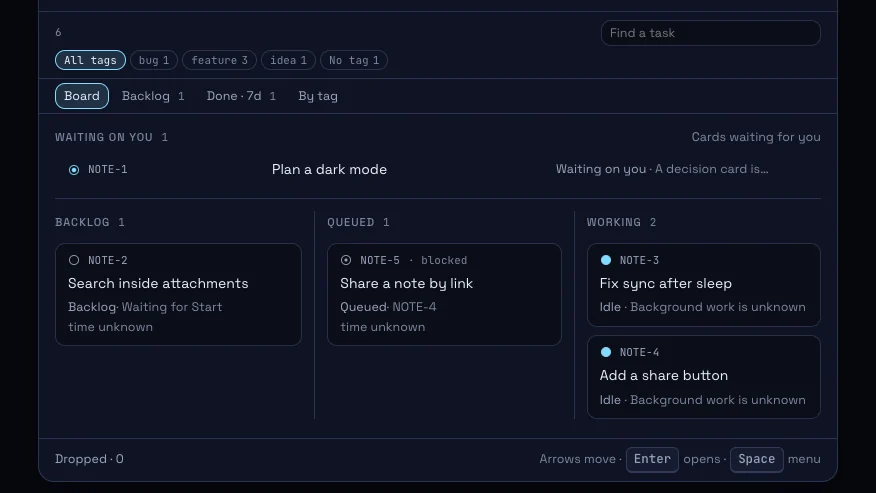
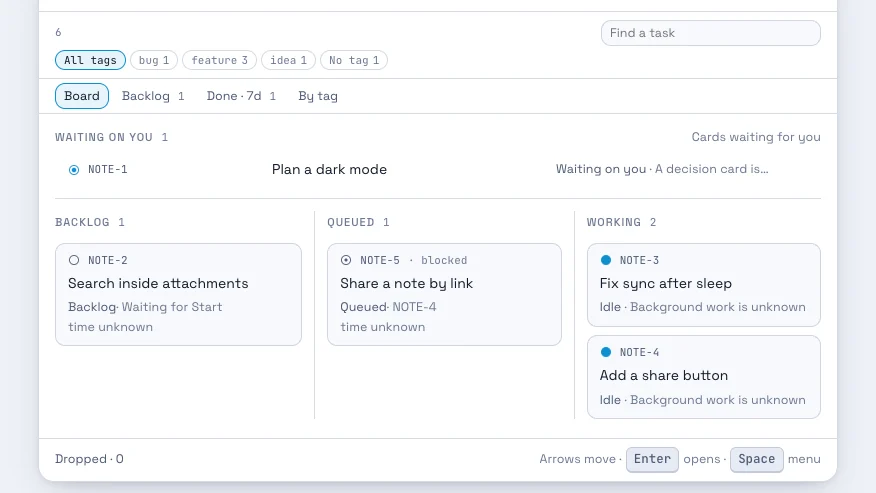
Its views also list the whole backlog, Done · 7d, and work dropped this week. Type a key or title in Find a task to narrow every lane, including older done work. When your project has tags, the board shows a row of them, and pressing one narrows the board to its tasks; see Tags.
To move a task, drag its tile to another column, or use its ⋯ menu:
- To Queued, it starts by itself when it can.
- To Working, it starts now.
- Back to Backlog, it waits for your word again. A task that already started keeps its work.
- To the Drop task tray, it is dropped.
A move that would start work or drop it asks once first. The board never merges anything: a merge happens only on the task’s merge card.
A task’s card
Section titled “A task’s card”Open a task to see its card. Under its title is a row of tabs:
- Info: what you asked, where it stands, its tags, and how it is delivered.
- Cards: the cards the task has shown you, with how many.
- Activity: every line the task has written, in order.
- Crewmate: the crewmate’s own session, line by line, as it works.
- Browser: a page the crewmate opened in its own browser, when it has one. See The crew’s browser.
A tab appears only once the task has something to show there.
A task split into parts
Section titled “A task split into parts”On the Info tab of a task split into parts, the Parts row counts the closed parts and lists every part with its status, in the order they were filed. Press the count to fold the list away, and press it again to open it. Past eight parts, the closed ones fold behind one line you can open. To open a part’s card, click the part, or move to it with the keyboard and press Enter; start it or answer it there.
A task in your backlog whose parts do the work never asks for its own Start. The top of its Info tab says what its parts wait on instead, such as “Its last part waits for your Start”, and the task closes by itself once its parts close.
A task can carry any of its project’s tags, such as bug or feature. You make a project’s tags in Settings → Projects; see Projects.
To tag a task, open its Info tab and press Edit tags on the Tags row. A menu lists the project’s tags, and each tick is saved at once. The Tags row shows once the project has tags. You can also ask your first mate to tag a task.
You can find tasks by tag in three places:
- Search tasks, in the Tasks header, shows a row of the project’s tags. Press a tag to list only the tasks that carry it, No tag for the tasks that carry none, or All tags for every task again.
- Group tasks, beside it, lists your tasks By tag instead of By status. Each tag is a group, folded until you open it. A task waiting on you lists first in the group of each tag it carries, and stays listed even while that group is folded.
- The task board has a row of tags of its own, and its By tag view counts each tag’s tasks by where they stand.
Tags show for one project at a time: the project in focus, or your only project with tags. To focus on a project, see Projects.
Steering a crewmate
Section titled “Steering a crewmate”You can tell a crewmate something three ways:
- Type under one of its cards, and press Chat.
- Type in the box at the foot of its Crewmate tab. A working crewmate takes your words in while it works; an idle one starts again from them.
- Tell your first mate, in the message box.
To stop a crewmate’s turn, press Stop on its Crewmate tab. The task stays open, and you can tell it what to do next.
Rigor is how thoroughly work is checked before it reaches you. It has three levels:
- Quick: the checks pass, and little more.
- Default: the crewmate shows the change working, with pictures, and runs the tests that matter.
- Careful: Default, then an independent review and proof that the change works, before the merge card.
Each project has its own Rigor, in Settings → Projects. For one task, say how careful to be when you ask, such as “be careful with this one”. On a merge card, Review carefully raises that task to Careful.
Asking before merging
Section titled “Asking before merging”Each project either asks before merging or merges on its own. The Ask before merging switch in Settings → Projects sets it. When it is on, finished work waits for your merge card. When it is off, work that passes the checks may merge without asking you, and you get a card with its story afterwards. To change it for one task, tell your first mate.
A step that waits on work
Section titled “A step that waits on work”When you ask for something outside your project once work is done, such as closing an issue or posting an update, your first mate files that step as its own task. It waits on every task that does the work, including parts added later.
- It starts only once each of those tasks has merged its change, or finished with nothing to merge.
- If one of them is dropped, the step does nothing and your first mate tells you.
- If you asked for the step once the work is in a release, it waits until your crew records a release that has the work; see Automation. While it waits, Infinitary starts a short task, Find the first release of merged work, soon after a new tag appears in your project and at least once a day, which looks for that release however your project ships and closes itself.
Infinitary adds no closing words to a merged change, so an issue closes through that step’s own task.
Closing a task
Section titled “Closing a task”Most tasks close by themselves:
- Merging its change closes the task.
- Discard on its merge card drops the work.
- Done on a note that answers your question closes it as answered.
You can also close one from its card:
- Drop task ends it. A crewmate that is working stops, and its unfinished work is kept.
- Close as done, on a task that started, says the work is done.
A closed task keeps its record. Dropped work stays on the board for a week, read only.