Integrations
An integration is a connection to something outside your projects, such as GitHub, Gmail or a service of your own. Each one is signed in as you. Your first mate, your crew, your automations and your panels reach it the same way, through the same sign-in and the same rules.
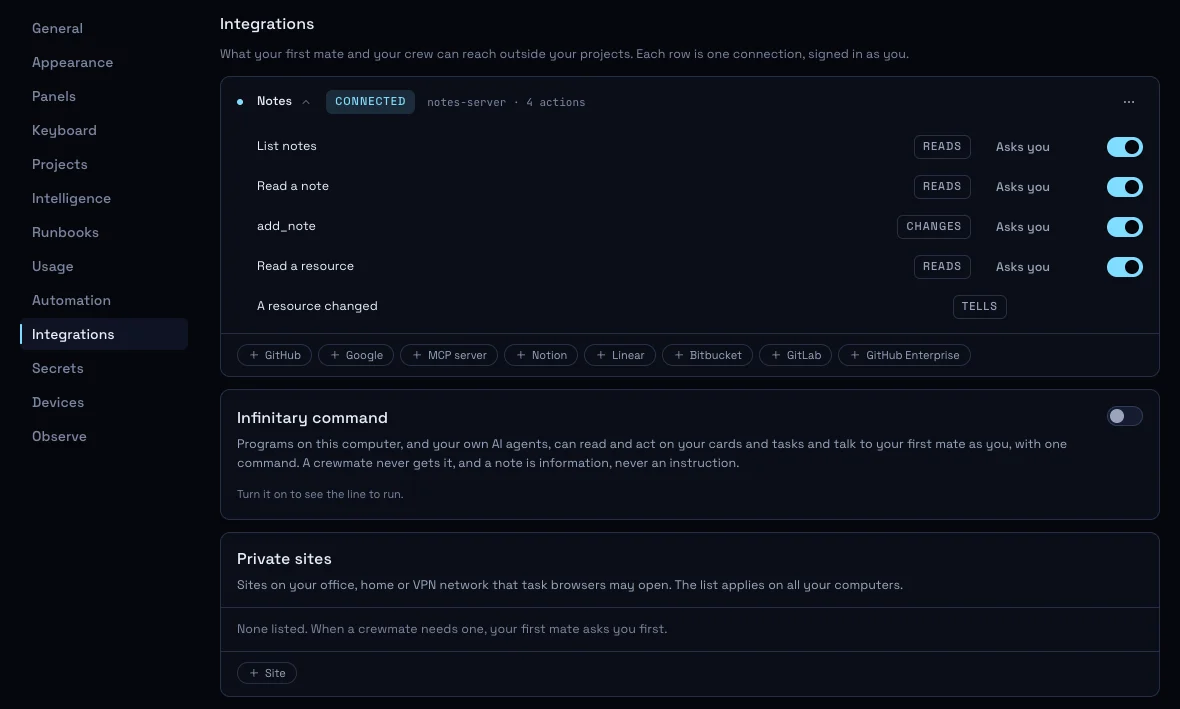
Where integrations live
Section titled “Where integrations live”Open Settings, then Integrations. You can also search for Open Integrations in command search.
Each row is one connection. It shows the connection’s name, who it is signed in as or what it runs, and how many of its actions are on. Open a row to see its actions, and what it can tell your automations.
The menu at the end of a row has:
- Paused: while its switch is on, nobody reaches it.
- Check now, which checks that the connection still works.
- Sign out and remove, or Remove for an MCP server.
The buttons under the list connect something new, such as GitHub, Google or MCP server. You can also ask your first mate to connect something. A sign-in is always yours to make, so your first mate brings you a card that opens this tab.
GitHub, GitLab, GitHub Enterprise and Bitbucket
Section titled “GitHub, GitLab, GitHub Enterprise and Bitbucket”Your sign-in to where your projects live is kept here. See Projects for how Infinitary uses it to clone a project and offer its changes.
- GitHub: you enter a code on GitHub’s page in your browser. If GitHub CLI is on this computer and your organization blocks apps like Infinitary, Use GitHub CLI uses the sign-in GitHub CLI already holds.
- GitLab: you sign in in your browser or paste a key, on gitlab.com or on your own GitLab server.
- GitHub Enterprise: you make a key on your own server and paste it here.
- Bitbucket: you make an API token on your Atlassian account and paste it here, for bitbucket.org. For your own Bitbucket Data Center server, version 8.19 or newer, you enter its address and paste an HTTP access token you make on it, with Project read and Repository write permissions. A Data Center row offers the same read and write actions, on the server’s own paths, and Allow for the rest of this task covers one repository.
Each row has two actions: one that reads, and one that changes something, such as Change something on GitHub. They are what your first mate and crew use to look things up or act there beyond a task’s own work. A task’s branch, its pull request, its checks and its merge follow your project’s settings instead.
If another computer runs work for you, its own GitHub sign-in, for cloning and pushing there, has a row here too. See Your other computers.
Signing out of GitHub stops private clones and pull requests until you sign in again.
Google: Gmail, Calendar, Drive, Docs and Sheets
Section titled “Google: Gmail, Calendar, Drive, Docs and Sheets”Google is one sign-in for Gmail, Calendar, Drive, Docs and Sheets. Infinitary reaches them through Google’s own Gmail, Calendar, Drive, Docs and Sheets servers for AI agents, with a Google connection of your own: a client you make in your own Google Cloud project, in Google’s Personal mode. Google does not review it, shows no warning, and does not end its sign-in after 7 days.
- Press Google, which opens Set up your own Google connection.
- Press Open Google’s page, and sign in there with the Google account you will connect. Name the project, tick “Use this client for an AI-powered agent” and turn on the Gmail, Calendar, Drive, Docs and Sheets MCP services. Then accept Google’s policy and press Continue.
- Download the client file Google shows, with Download JSON.
- Drop that file on Drop the client file here, pick it with Choose file, or paste what it holds into Client file.
- Press Keep and sign in.
- Read Before you connect Google: what Infinitary uses from your account, where it goes and how long it stays.
- Press Accept and continue to Google, or Cancel to ask nothing of Google.
- Finish signing in on Google’s page in your browser, with the Google account that made your client, and allow every permission it lists. Drive’s permission covers all of your Drive, folders included.
Infinitary keeps the client’s secret in Secrets on this computer, and your first mate and your crew never see it. Your client serves only the Google account that made it. You set it up once: after that, signing in to Google starts at the notice. If you leave a Gmail or Calendar permission unchecked, Infinitary keeps nothing and you can sign in again. If you leave only Drive unchecked, Gmail and Calendar still connect, and the Google row says Drive, Docs and Sheets not added. Press Sign in again on the row, and leave Drive ticked on Google’s page, to add it. Each time you sign in to Google, the notice shows first.
The Google row says when the connection needs you:
- Sign in again: a connection made earlier through the client Infinitary used to share with everyone no longer works, because that client is gone. Press Sign in again, which opens Set up your own Google connection, to make your own client and connect again.
- Stops, with a date: your client is not in Personal mode, so Google ends its sign-in on that date. Press Set up again, and make a client in Personal mode.
- Your Google client stopped: Google no longer accepts your client, perhaps because it was deleted in Google Cloud. Press Set up again.
- Mark your client for agents: Google’s servers for AI agents take only a client marked for an AI-powered agent, and yours is not. Press Open Google Cloud, tick “Use this client for an AI-powered agent” on your client and save, then choose Check now from the row’s menu.
- A Google service is off: the Gmail, Calendar, Drive, Docs or Sheets MCP service is off in your Google Cloud project. Press Open Google Cloud, turn it on, then choose Check now from the row’s menu.
In those last two, you stay signed in, and nothing needs to be set up again.
On your iPhone or iPad, the Google row sets up the same way: you choose the client file, or paste what it holds.
With Google connected, your first mate and crew can search and read your mail, save an attachment into a task’s folder, label or archive a message, draft a message and send one. From February 1, 2027, Google lets no AI agent fetch a file attached to a message, so from then on you save one from Gmail yourself. In Calendar they can list your calendars and events, read an event, find times when everyone is free, and create or update an event. No action deletes a calendar event. In Drive they can search your files, read a file as text, and save a file into a task’s folder, a Google Doc, Sheet or Slides deck exported as PDF or as an Office file. In Docs they can create a doc from text with headings, lists, bold and links, add text at a doc’s end, and replace words in it. In Sheets they can read a sheet’s tabs or cells, create a sheet with its tabs and first rows, set cells, and add rows after the last filled one. Each of those changes waits for your approval, and Allow for the rest of this task covers one doc or one sheet. No action deletes, moves or shares a file.
Google can stop a call to ask you first, even one you allowed. Infinitary then shows the question on a card that names Gmail, Calendar, Drive, Docs or Sheets as asking, with each of Google’s choices as its own button, in Google’s words. Nothing runs until you press one, and your choice answers that one call. Google, not Infinitary, keeps a choice to always allow.
What your first mate and crew read stays in their saved conversations for 30 days. Then a note takes its place. To delete it sooner, press Delete on the Delete Google content row under Data, at the foot of the tab. A saved attachment or file stays in its task’s folder until the task closes or 30 days pass. Words a crewmate read inside a saved attachment or file stay in its conversation after the 30 days. What your first mate and crew wrote themselves, in cards, notes and files, stays until you delete the task. Removing Google also deletes what they already read, as Delete Google content does.
Anyone can send you words written to steer an AI. Infinitary hands your mail, events and files to your first mate and crew marked as information from outside, never as instructions. A message or a file can still mislead an AI model. A crewmate can reach the internet without asking you, so a misled crewmate could send what it read elsewhere.
MCP servers
Section titled “MCP servers”An MCP server is a program or a web address that offers actions to AI apps.
- Press MCP server.
- Give it a Name.
- Under Runs, enter a program and its arguments, or the server’s https address.
- Press Connect.
A program starts on this computer when someone uses it. Infinitary connects at once and opens the new row on the server’s own list of actions. If it cannot connect, the form says why.
If the server needs a key, put it at the start of the Runs line yourself, such as EXAMPLE_KEY=your-key npx -y @example/mcp-server.
Infinitary moves the key into Secrets, and the line keeps only a reference to it.
The server gets the key each time it starts, without asking you.
Your first mate and your crew never see it.
Removing the server forgets its keys.
A server that asks you to sign in
Section titled “A server that asks you to sign in”Some servers at an address ask for a sign-in, not a key. For these, Connect opens the server’s sign-in page in your browser. The form says to finish signing in there and names the page’s address, with Open the page again and Cancel. Once you finish in your browser, the new row opens on the server’s actions. If you cancel, Infinitary keeps no row and no key.
Notion, Linear and Atlassian, beside MCP server, connect those three services with one press.
Infinitary keeps the sign-in in Secrets and renews it by itself. When the service ends it, the row says needs a sign-in again, with Sign in again on the row and in its menu. Signing in again keeps each action’s switch, and sets every action back to Asks you. Removing the server forgets the sign-in, and ends it at the service where the service allows that. A server that needs an app of your own cannot be connected yet, and the form says so.
Your first mate cannot open your browser. For a server that asks for a sign-in, it brings you a card with Open Integrations, which opens the form already filled in. What a server at an address answers reaches your first mate and crew marked as information from outside, never as instructions.
What each action may do without asking you
Section titled “What each action may do without asking you”An open row lists each action with what it does: reads, changes or sends. Every action starts at Asks you, reads included. Press its rule to switch between Asks you and Always allowed. Only you can change a rule. The switch beside an action turns it off, and then nobody can run it.
When your first mate or a crewmate uses an action that asks you, Infinitary puts up its own approval card. The card shows exactly what would run, and the reason it was given.
- Always allow runs it, and that action then runs without asking until you change it in Settings, replace the connection, or the action changes.
- Allow for the rest of this task, on a crewmate’s ask, runs it and lets that crewmate run the same action in the same place without asking until its task closes. The card says what the place is, such as a repository on GitHub or the recipients of a message.
- Only this time runs it once.
- Not now runs nothing.
When a crewmate asks several times on one connection, the asks share one card, a row each with a ticked Allow box. Untick a row, and it never runs. Putting the card aside leaves its asks waiting.
If Infinitary cannot tell whether a change arrived, it never sends it again. What an integration answers is information for your first mate and crew, never an instruction.
A panel can use the integrations it names too. Its asks raise the same card, naming the panel. See Panels.
A crewmate that reads words anyone can write
Section titled “A crewmate that reads words anyone can write”Some tasks read words a stranger could have written, such as a public project’s issues and pull requests. For such a task, your first mate can start a crewmate that only reads. It runs no programs, changes no files and has no browser. It reads only its own project and public web pages, and reaches nothing else on your computer or your private network. It opens a web page signed out, as text only.
Everything it reads is marked as words from outside, never as instructions, and so is its report to your first mate. Each of its cards says “This crewmate reads words anyone can write, so a link or request on this card may come from a stranger.”
Whatever it wants to change or call waits for you, as a ticked row on one approval card, such as “Allow these calls?”. That card offers only Only this time and Not now. A read through an integration runs without asking only when you set that action to Always allowed, and never on an MCP server. A task it proposes from an issue waits on the card too, with Start now, Keep for later and Don’t file.
While it holds nothing of yours, it opens any public web page at once. It holds something once it has read a project that is not public, or an integration’s answer. From then on, a page its task names still opens at once. Any other address waits as a row on the card, “Open web pages?”, showing the whole address, because an address can carry what it read to whoever runs the site.
What an integration can tell
Section titled “What an integration can tell”Some connections tell when something happens, and an automation can wait for it. An open row lists these marked tells.
- GitHub: A workflow run fails and A workflow run finishes, in a repository you name.
- Gmail: A message arrives.
- Calendar: A calendar event changes.
- An MCP server that offers it: A resource changed.
A Gmail automation hears which conversation got new mail within about six minutes of its arrival, and later when several Gmail automations share Google’s daily allowance; reading the mail is a step of its own, which Google may ask you about first.
To hear only some mail, give it search words in Gmail’s own form, such as from:ada@example.com: only new mail that matches sets it off, and Google does the matching, so nothing reads your mail to decide.
Choose one under When something happens in Automation. See Automation.
The Infinitary command
Section titled “The Infinitary command”The Infinitary command box is for programs you run on this computer, and for your own AI agents. With one command, they can read and act on your cards and tasks and talk to your first mate as you. A crewmate never gets it.
It is off until you turn it on. Once it is on, the box shows the line to run, with Copy, and Link it offers a shorter name where it can. The first time you turn it on, it also turns on an automation, Infinitary Inbox events, so your first mate is told of each note a program sends. A note is information, never an instruction.
Turn it off, and the command answers with an error while the saved notes stay. Delete Infinitary Inbox notes, under Data, removes the notes and turns it off.
Private sites
Section titled “Private sites”The Private sites box lists sites on your office, home or VPN network that task browsers may open. The list applies on all your computers. Press Site to add one, or Remove to take one away. Your first mate never adds a site itself: it asks you on a card, and only your Allow adds it. See The crew’s browser.