First launch
Before you start, check what you need. This page walks through the first time you open Infinitary, and what changes after that.
What the window shows
Section titled “What the window shows”The first time you open Infinitary, your first mate greets you in the middle of the window. Under it reads Welcome aboard Infinitary, Captain, with a line from your first mate:
I’m your first mate. I’ll help you manage the rest of the crew.
Then your first mate asks where it should live:
Where should I live? Pick a computer that stays on as much as possible.
Three choices follow, each saying what it does:
- This computer: you sign in to a subscription here, and your first mate lives and works on this computer.
- Another computer: your first mate runs on another computer, and you control it from this one.
- One already running: you connect to a first mate that already runs on another computer, and control it from here.
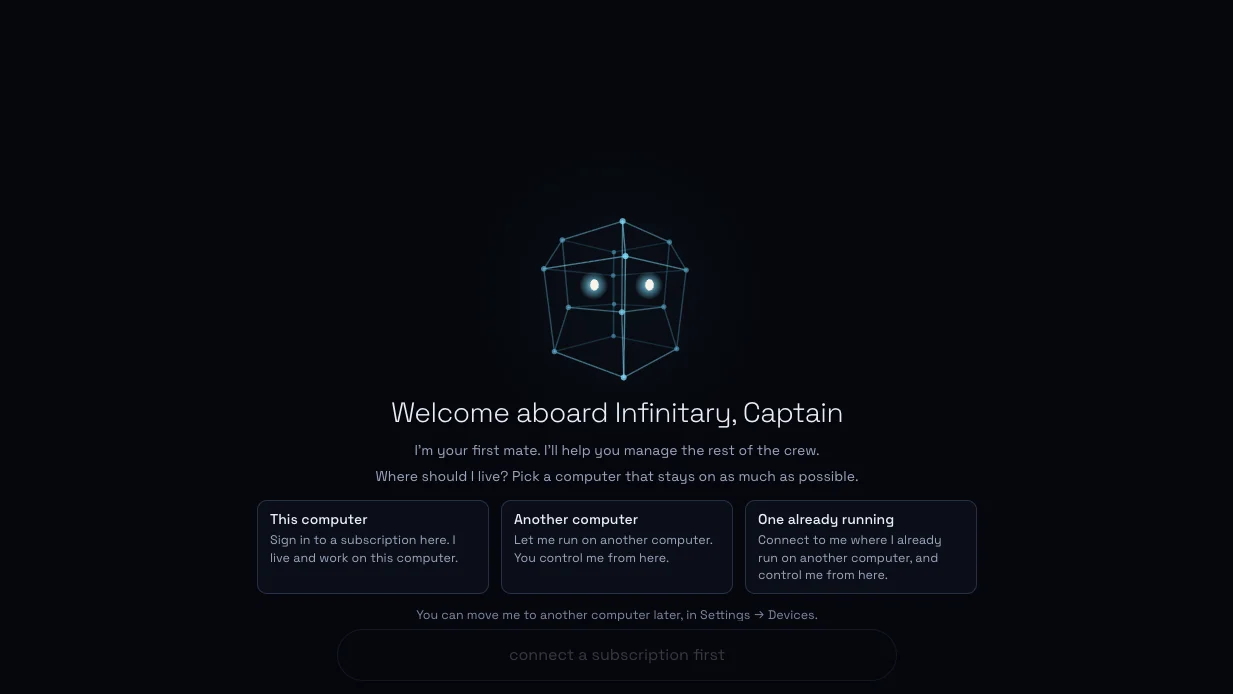
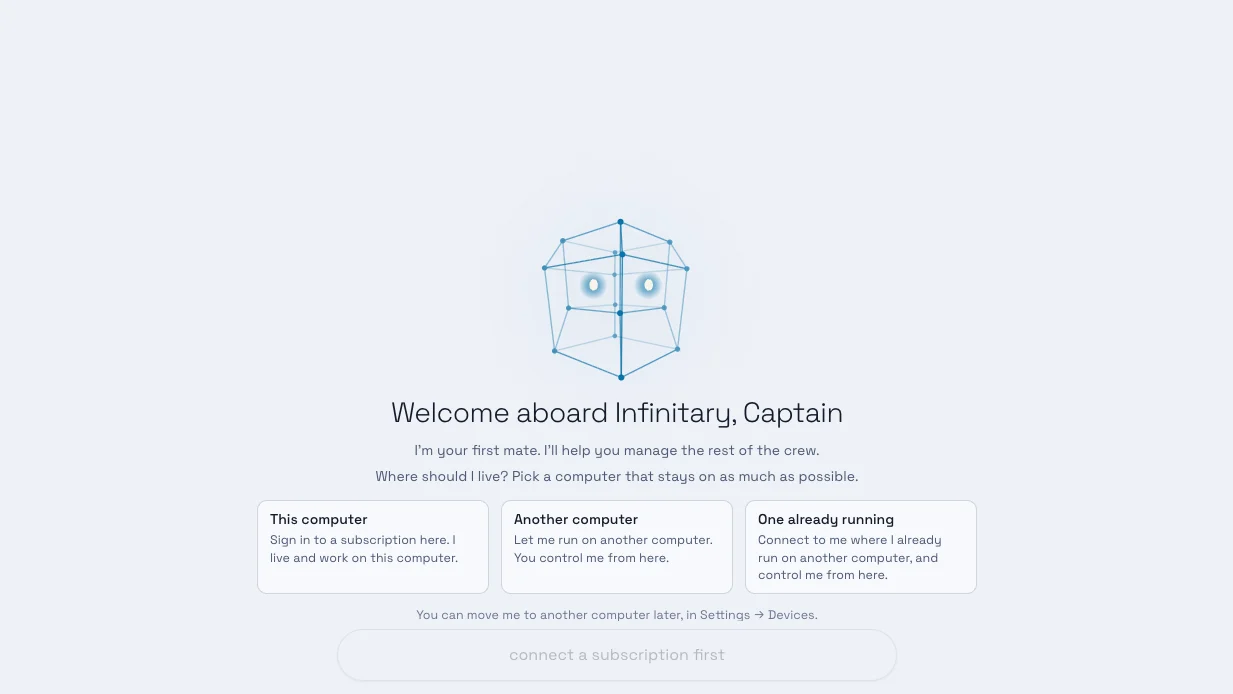
Pick a choice to open it. From the keyboard, Tab reaches each choice, the arrow keys move between them, and Enter or Space opens one. ‹ Where I live, above an opened choice, takes you back to all three. Under the choices, your first mate says you can move it to another computer later, in Settings → Devices.
The message box at the bottom is dimmed and reads “connect a subscription first”. Nothing else works until a subscription can answer your first mate.
Connect a subscription
Section titled “Connect a subscription”Choose This computer to keep your first mate here. A button appears for each provider your first mate can use: Codex, Grok, Claude, Kimi Code, Copilot, OpenCode Go, OpenRouter, Amazon Bedrock and Custom API.
- Pick your provider’s button.
- Sign in the way that provider asks. Some open the sign-in page in your browser. Copilot and Kimi Code show a code: press Copy code, then enter it on the provider’s site. OpenRouter takes an API key you paste. OpenCode Go takes the key you paste from the OpenCode Console. With Amazon Bedrock, choose a region and use an AWS profile on this computer or paste a Bedrock API key. A provider that offers both asks whether to Sign in with your browser or paste an API key.
- Wait while the window says it is connecting. When the subscription can answer, the welcome screen fades and the message box opens.
If you use Claude, Infinitary uses the Claude Code you installed on this computer. Without it, the Claude button says to install Claude Code first.
If a subscription is connected but still cannot answer, the window reads Set up your first mate on this computer, opens on This computer, and says what is still missing.
Set it up on another computer
Section titled “Set it up on another computer”Choose Another computer to have your first mate live on a computer that stays on, such as a desktop or a server, while you control it from this one. The window shows Set me up on another computer.
- Type the account and the computer the way you sign in to it with SSH, such as
you@mini.local, and its port if it is not 22. Remote Login must be on there; on Linux, its SSH server. Computers on the same network are listed under On this network, so you can pick one. - Press Continue.
Infinitary then sets your first mate up there, one step at a time, under “Setting up your first mate on” that computer’s name:
- Read its SSH key: it shows the computer’s key line and asks you to confirm it before signing in.
- Sign in with your SSH key: if the computer does not take your key, it asks once for that account’s password.
- Check its system.
- Send Infinitary.
- Start your first mate there, so it starts again after every restart.
- Connect from here.
- Connect a subscription for it.
Each finished step says what it found.
If a step stops, it says what stopped it and what to try, with Ask again, Set it up with commands and Back.
If Infinitary already runs there, it offers Connect to it instead.
A Linux computer that signs you in as root is offered an ordinary account named infinitary for your first mate, since Infinitary does not run as root.
Cancel stops at the next step; if your first mate has not started there yet, the copy of Infinitary it sent is deleted.
Once it connects, this window shows the first mate on that computer. It reads Connect a subscription to begin: pick a provider and sign in from here, as in Connect a subscription.
With commands
Section titled “With commands”Set it up with commands shows the same setup as commands to run on the other computer:
-
Install Infinitary there.
-
Start your first mate there:
Terminal window infinitary start-at-boot -
Make a link there for this computer:
Terminal window infinitary link -
Paste the link it prints here: press Paste its link.
Each command has its own Copy.
On a Mac, type /Applications/Infinitary.app/Contents/MacOS/Infinitary in place of infinitary.
See A computer with no screen for a server you reach only over SSH.
If your first mate already lives on another computer
Section titled “If your first mate already lives on another computer”Choose One already running. A group reads “Your first mate is on another computer” and offers these ways in:
- Set up from your first mate’s computer, on a Mac or an x64 Linux computer, comes first. It shows this computer’s address to type on the computer where your first mate lives. Once that computer adds this one, this window opens your first mate by itself, as long as nothing was set up in it yet, such as a sign-in or a project.
- Paste its link: paste a link made on the computer where your first mate lives, in Settings → Devices or by asking your first mate, then press Continue.
- Join by its address: type the address you sign in to that computer with over SSH. If Infinitary is not open there, Set it up from here sets your first mate up on it instead, as in Set it up on another computer.
Infinitary asks once whether to control your first mate from there; press Control it from here.
A window where you already set something up keeps its own first mate: use Paste its link or Join by its address to control that first mate from here instead. If Infinitary was closed when that computer added this one, it opens your first mate the next time it starts, whatever was set up in it. A window beside an Infinitary you started yourself from Terminal keeps that one’s first mate and offers neither way; stop that Infinitary first to use them. A Windows PC and an Arm Linux computer show Paste its link and Join by its address alone. See Your other computers.
The Diagnostics notice
Section titled “The Diagnostics notice”A notice under the message box says what Diagnostics sends and that it never includes what you type. It shows whether or not a subscription is connected, and stays until you answer it. Choose OK to keep it on, or Turn off. You can change it later in Settings. See What leaves your computer.
The welcome card
Section titled “The welcome card”Once your first mate can answer, a card titled How we work appears.
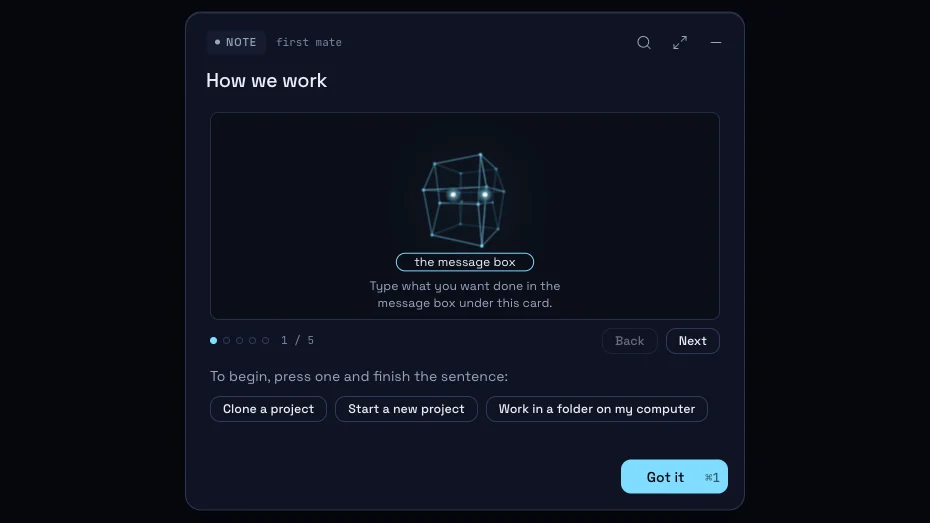
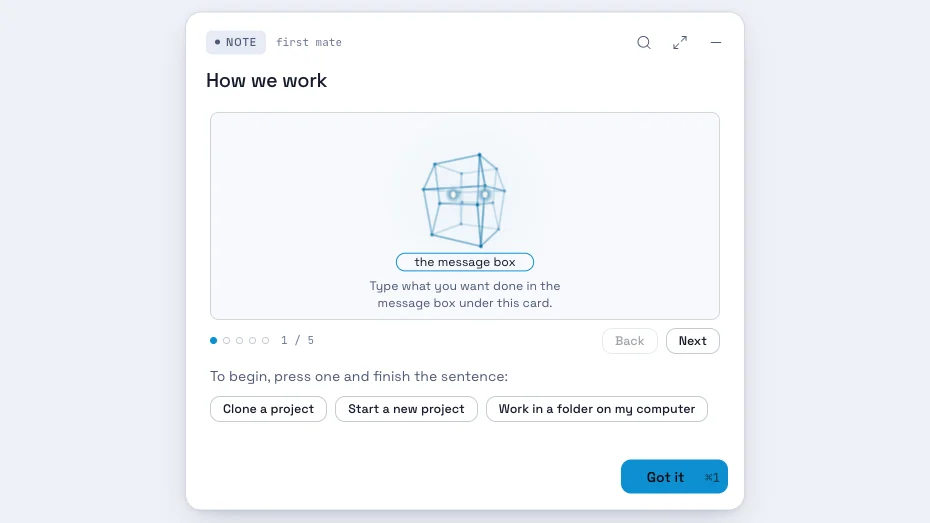
It is a small picture of the window that shows one part at a time. Press Next and Back to see the message box, a card, Activity on the left where crewmates report, and Tasks on the right where every ask gets a record.
Under the picture, it reads “To begin, press one and finish the sentence:”, with three starters:
- Clone a project puts “Clone the project at” in the message box.
- Start a new project puts “Start a new project called” in the message box.
- Work in a folder on my computer opens your computer’s folder picker. The folder you choose becomes a project, and a line under the card’s title names it. A folder that is not a git project yet gets git, with an empty first commit.
Finish the sentence and send it. A starter sends nothing by itself. On a computer that controls a first mate on another computer, Work in a folder on my computer puts “Work in the folder” in the message box instead, since the folder picker would show this computer’s folders.
The welcome card has no reply field: the message box under it is where you type. Press Got it to put it away whenever you like.
Your first crewmate
Section titled “Your first crewmate”The first time your first mate hands an ask to a crewmate, a card titled A crewmate is on it appears.
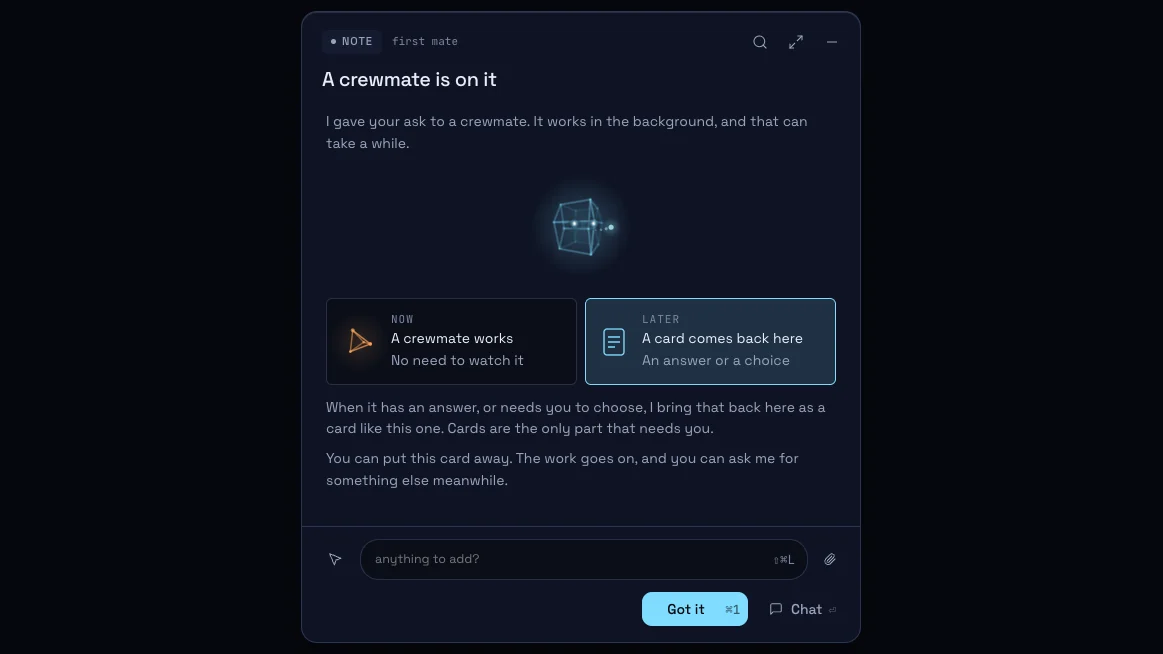
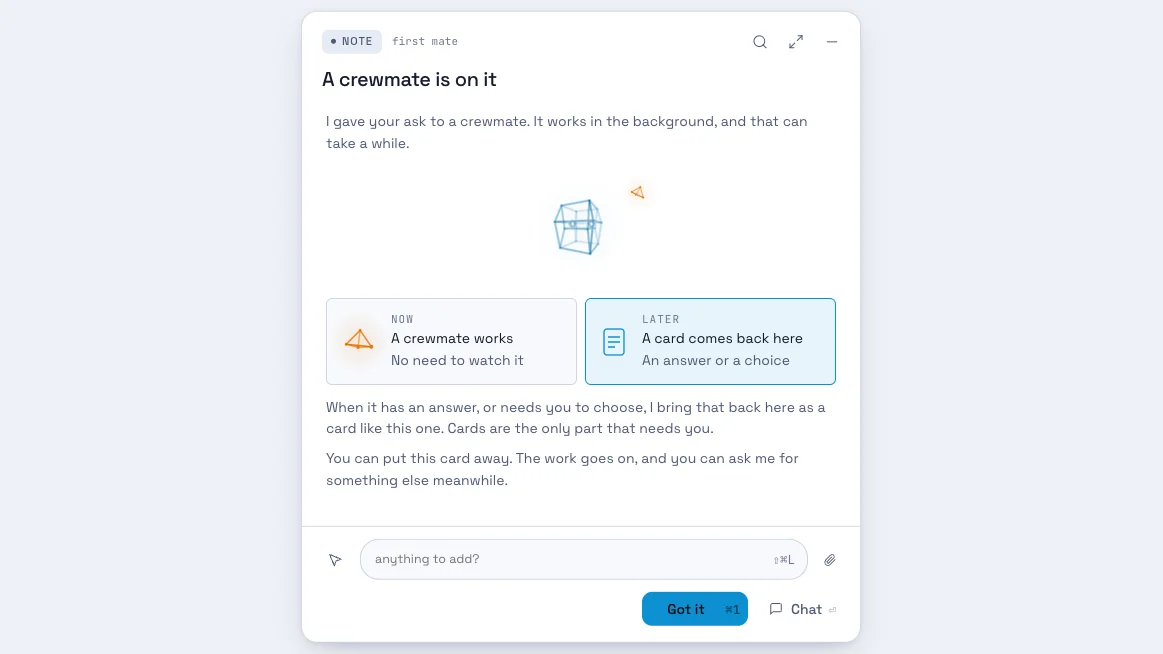
It says the crewmate works in the background, which can take a while, and that you need not watch it. When the crewmate has an answer, or needs you to choose, it comes back as a card. Cards are the only part that needs you.
If the How we work card is still open, this card takes its place. It shows once. Press Got it; the work goes on, and you can ask for something else meanwhile. See Your first task.
Add your first project
Section titled “Add your first project”Your first mate needs a project to work in. The easiest way is a starter on the welcome card, or the same words in your own message.
Work in a folder on my computer adds the folder you choose right away. For the other starters, your first mate shows a card that names the project and how it will be set up. Check the choices on the card, then press Add project, or Not now to leave it. Nothing is added until you press Add project.
You can also add a project yourself in Settings → Projects with Add project. See Projects for the choices there.
Later launches
Section titled “Later launches”When a subscription can answer, Infinitary opens straight to the message box. Your cards, tasks and crew are where you left them.
After Infinitary updates, a card names the new version and what changed. You can read it again later from Settings → General, under Version. On a Mac, the Help menu’s What’s New in Infinitary opens it too.
If your last subscription stops working, for example because you signed out, the welcome screen comes back until one can answer again. If your plan’s allowance runs out, your first mate shows a card that says so instead, and keeps your messages until it can answer. See Subscriptions and allowance.
To open Infinitary when you sign in to your computer, turn on Start at login in Settings → General.